Configure AI Providers
Who this is for: ADMIN only — the AI Settings screen is admin-gated.
An admin's guide to turning on AI narration — the feature that generates live commentary for every segment your promotion runs. Requires the ADMIN role.
What AI narration does: when a show runs, each segment gets play-by-play commentary, wrestler promos get voice, and show recaps are written for you. Without a provider, shows still run — you just don't get the narration.
Step 1 — Pick a provider and get a key
The game supports OpenAI, Claude (Anthropic), Gemini, Pollinations, and Ollama (local, no key). You only need ONE enabled.
💡 Costs: Gemini's free tier has daily request limits that are plenty for a single promotion. OpenAI and Claude are paid per request. Pollinations offers free tiers. Ollama runs on your own machine — no key, no network, just a slower local model.
To get a Gemini key (the usual starting point):
- Go to Google AI Studio and sign in with a Google account.
- Click Get API key → Create API key (a new Google Cloud project is created for you automatically).
- Copy the key (starts with
AIza…). Treat it like a password — anyone who has it can spend your quota.
Step 2 — Configure it in AI Settings
In Admin → AI Settings you'll find collapsible sections — one common section on top, then one per provider:
- Find the provider section you have a key for (e.g. Gemini Settings) and expand it.
- Tick Enabled.
- Paste the key into API Key. Fields save as you edit — a notification confirms each change.
- Leave API URL and Model Name at their defaults unless your provider documents otherwise.
- If you enable more than one provider, leave Auto Select Provider ticked in the common section and the game picks the first available one. Untick it to pin a specific provider.
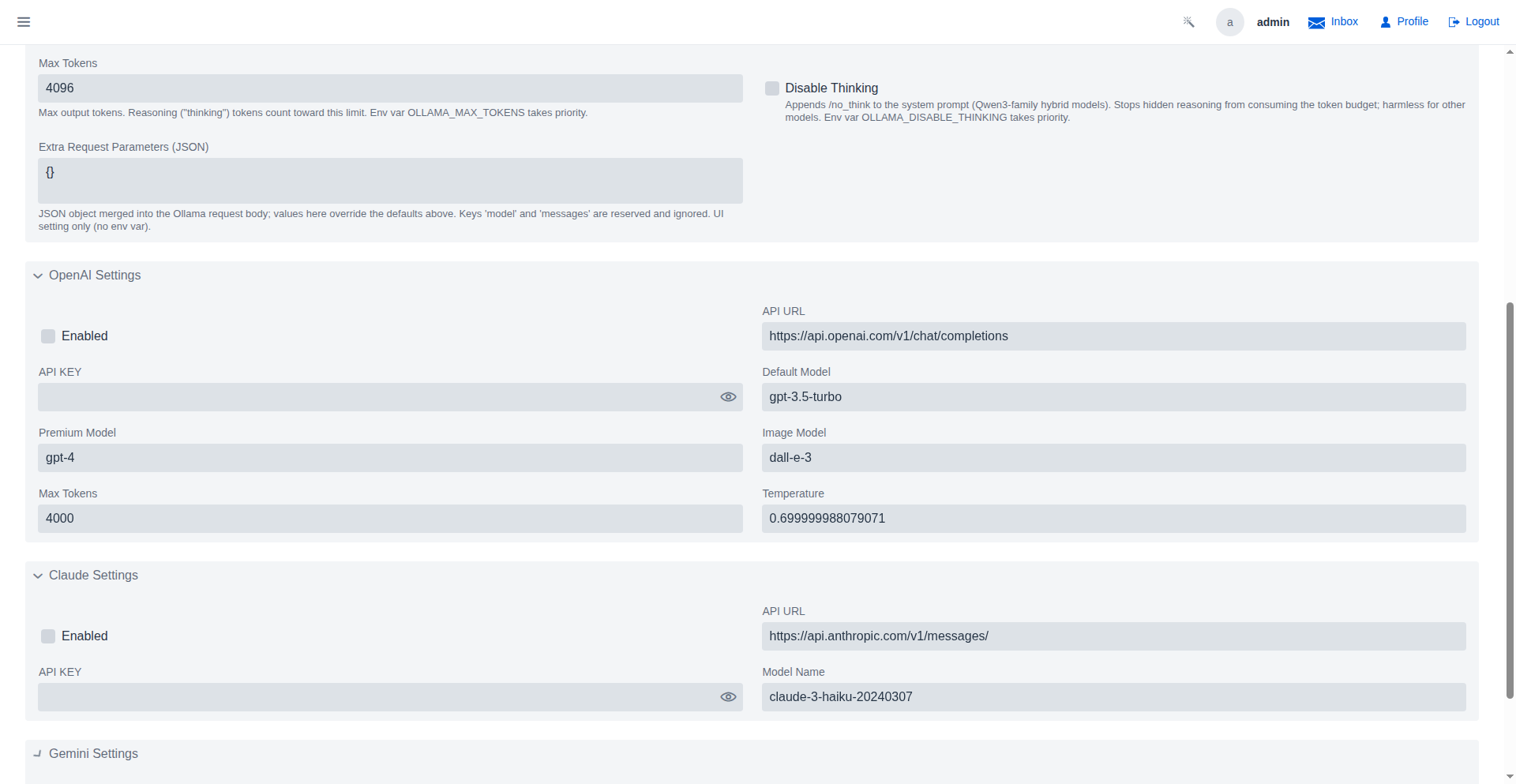
Provider notes:
- Ollama needs no key — set the Base URL of your local server (default
http://localhost:11434) and the Model tag to pull (defaultllama3.2:1b). Environment variablesOLLAMA_BASE_URLandOLLAMA_MODELtake priority over the UI values. - Ollama optional parameters: Max Tokens caps the response length (default 4096) — note that thinking models (e.g. Qwen3) spend hidden reasoning tokens from this budget, so enable Disable Thinking to keep the full budget for narration (it appends Qwen3's
/no_thinkswitch; harmless for other models). Extra Request Parameters (JSON) merges arbitrary JSON into the request body, overriding the defaults — reserved keysmodelandmessagesare ignored. Env varsOLLAMA_MAX_TOKENSandOLLAMA_DISABLE_THINKINGtake priority over the UI values. - Timeout (seconds) in the common section caps how long narration requests wait. Raise it for slow local models.
- The OpenAI section exposes extra knobs (default/premium/image models, max tokens, temperature) used by features that generate art as well as narration.
Keys are stored in the database and survive restarts. If you run the app in Docker, you can bootstrap keys with environment variables instead (AI_GEMINI_API_KEY, AI_OPENAI_API_KEY, AI_CLAUDE_API_KEY) — a value set in the UI always wins over the environment afterward.
Step 3 — Verify narration works
Run any show with a pending segment (see Schedule a Show) and open its detail page after adjudication — each segment should show generated commentary.
If narration is missing:
- Check the provider is Enabled and the key was accepted.
- Check the Timeout — a local Ollama model on first load may need more time while it pulls the model.
- Check the application logs for provider errors (wrong key, quota exhausted).
Where to go next
- Admin Getting Started — the wider admin setup, including content expansions.
- AI Features overview — everything the AI layer powers: commentator personas, show recaps, and more.